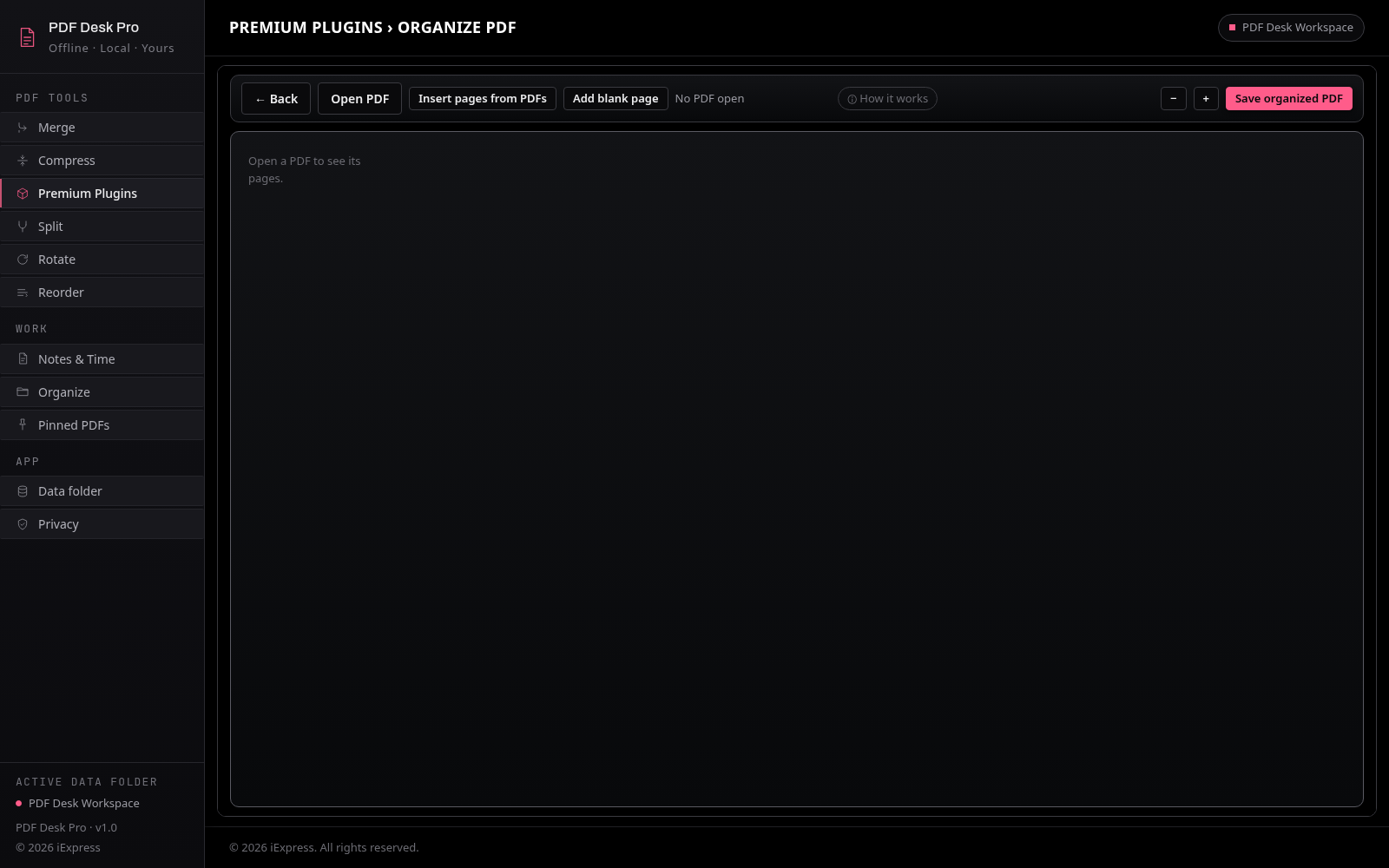
Organize: sort a folder of mixed files in moments
Sorting thousands of mixed files by hand, with PDFs, photos, spreadsheets and documents all mixed together, takes hours. Organize, in the left panel of PDF Desk Pro, does it for you in moments. It works on any folder you choose and puts every file into a clear, neatly named folder.
Think of your mixed folder as a box you have been dropping things into for months. You are not sure what is inside, and you do not want to lose any of it. Organize looks through all of it, shows you exactly what it found, and sorts it only when you say so.
The two key steps
1. PREVIEW: see what will happen. Nothing is changed.
2. COPY FILES / MOVE FILES: do it. This is the only step that touches your real files.
You can press Preview as many times as you like. It reads your files but never changes, moves or renames anything.
Before you start: your data folder
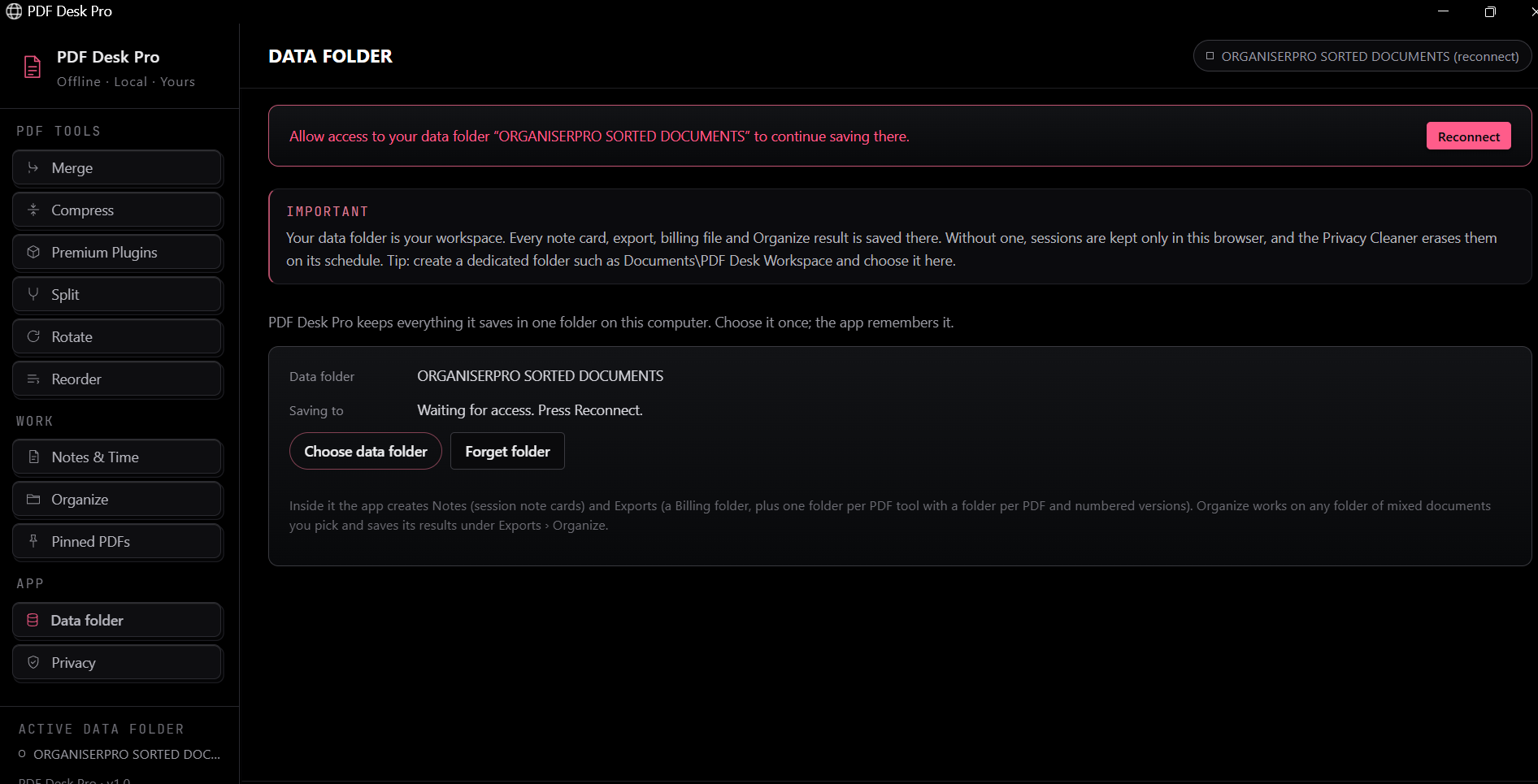
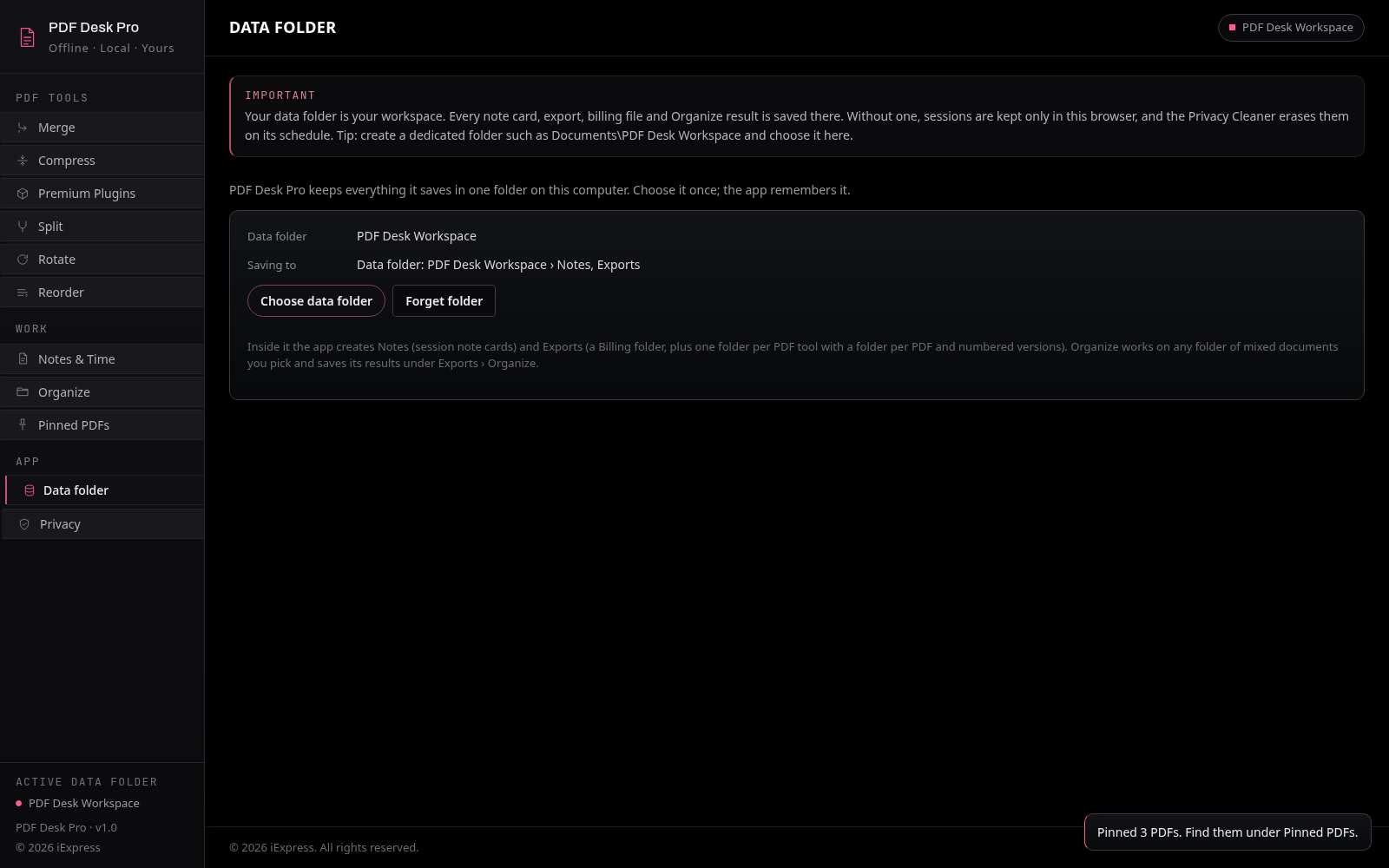
PDF Desk Pro saves everything it creates into one data folder of your choice. The sorted results from Organize go into that folder, under Exports\Organize.
- To set it, click the folder button at the top right of any page (it reads "No data folder" until one is set), then press Choose data folder.
- If you want the sorted results kept away from your other work, choose or create a separate data folder just for this.
Step by step
- Make your own folder and drop your mixed files into it. For example, create a folder called
Mixed Documents on your desktop or in Documents. Subfolders are fine; Organize looks inside all of them. - Open PDF Desk Pro and click Organize in the left panel.
- Press Choose source folder and pick your
Mixed Documents folder. - Choose Sort by: Type, Extension or Name (see below).
- Choose Copy or Move.
- Copy (the default, and the safest choice): your original files stay exactly where they are. Organize puts sorted copies into Exports\Organize.
- Move: the files are moved into Exports\Organize. The app asks you to confirm first, and removes each file from your folder only after its copy has been checked.
- When Move is selected, an extra checkbox appears: Remove empty source folders. Tick it if you want the leftover empty folders tidied away after the move. Organize creates its own neatly named folders, so you will not need the old empty ones.
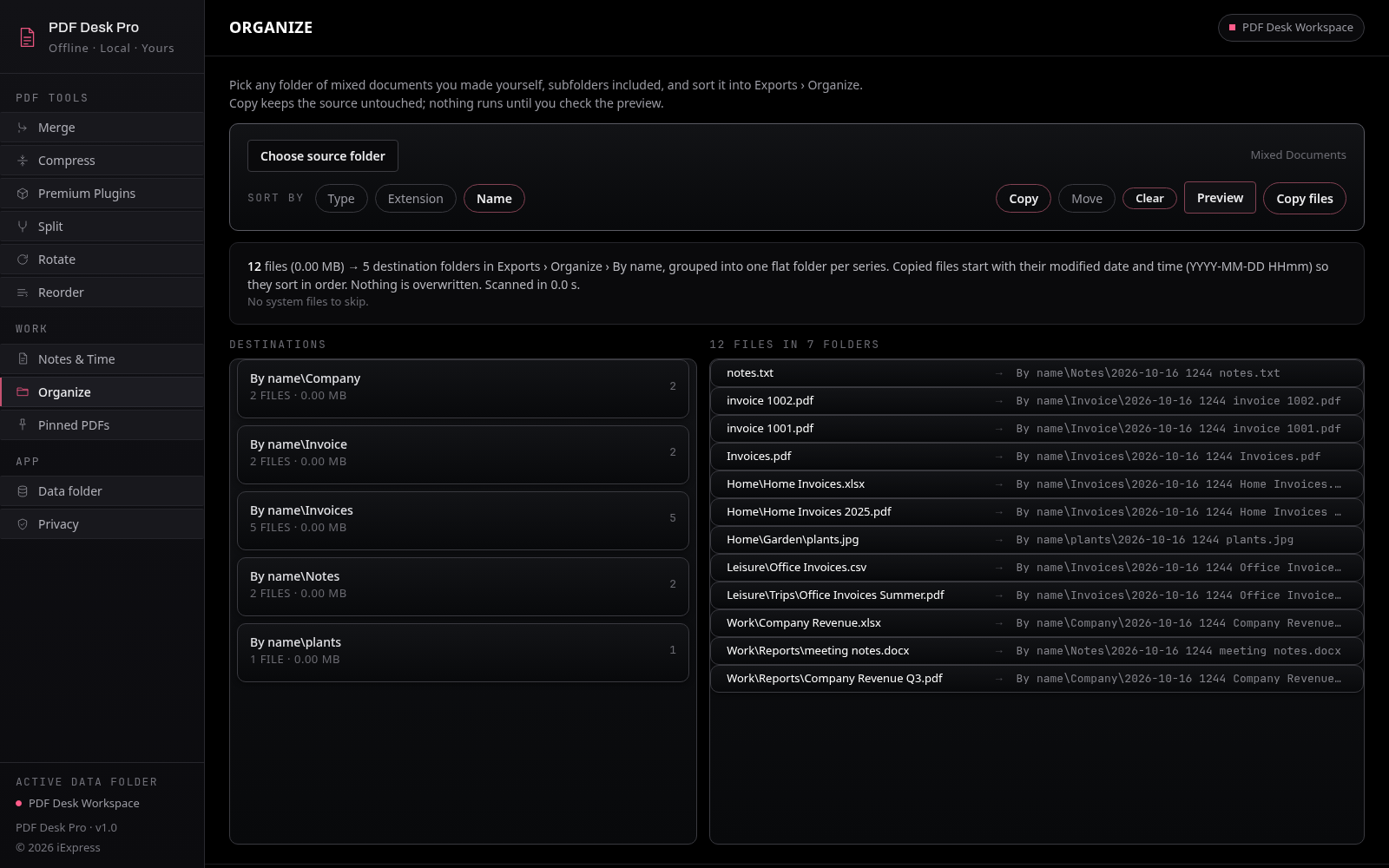
- Press Preview. Organize scans every file and subfolder and lists on screen where each file will go, with a card for each destination folder showing how many files it will receive. Nothing is changed yet.
- Press Copy files (or Move files), the button beside Preview on the right, and let the app sort everything. A progress bar and counter show how it is going, and a summary at the end lists the folders created, the files copied or moved, and any problems.
How files are sorted
| Sort by | Where files go |
|---|
| Type | Exports\Organize\By type\<Category>\<extension>\<Series>\. Categories are PDFs, Images, Documents, Spreadsheets, Data, Text, Archives, Audio, Video and Other. |
| Extension | Exports\Organize\By extension\<extension>\<Series>\ |
| Name | Exports\Organize\By name\<Series>\ |
Series folders
Files whose names share a word are kept together in one series folder, named after the word they share most. For example, Home Invoices.pdf, Office Invoices.pdf and Invoices.pdf all go into one Invoices folder. A file whose name shares no word with others gets a folder with its own full name, for example Company Revenue. You will never see a folder repeated inside one of the same name.
Date-first names
Each sorted file starts with its last-modified date and time, so every folder lists in date order. For example:
2026-10-16 0911 Invoices.pdf
Nothing is ever overwritten
Folders are created if missing and reused if they already exist (capitals do not matter). If a name is already taken, the new file gets the next version number (v3 becomes v4) or a number such as (2). Your existing files are never replaced.
Skipped files
Hidden system files such as desktop.ini, Thumbs.db and .DS_Store are skipped and listed in the summary.
Pause, Cancel and Clear
- Pause: available while a preview scan or a sort is running. It holds the work; the button then reads Resume, so press it to carry on.
- Cancel: stops the scan or the sort. Files being copied at that moment finish first; files already sorted stay where they are; the rest are left untouched in your folder.
- Clear: clears the preview and results from the screen only. It never touches any files on disk.
Large folders
Organize is built for big jobs. Folders with tens or even hundreds of thousands of files are scanned and sorted folder by folder, with small, steady memory use, so the app stays responsive. The preview shows totals for everything and lists the first 5,000 files on screen.
FAQ
Will Preview change my files?
No. Preview only reads. Only Copy files or Move files changes anything.
Which should I choose, Copy or Move?
Choose Copy if you are unsure. Your originals stay untouched, and you can delete them yourself later once you are happy with the result.
Can I use any folder?
Yes. Pick any folder of mixed documents you have made yourself, on your desktop, in Documents or on a USB drive.
Where are my sorted files?
In your data folder, under Exports\Organize, then By type, By extension or By name.
What if I run Organize twice on the same files?
Existing folders are reused and nothing is overwritten. Files with names that are already taken get a new version number.
Does anything leave my computer?
No. PDF Desk Pro works fully offline. Your files stay on your computer.
© 2026 iExpress. All rights reserved.